Connecting Personal Viber Accounts for Operator-Initiated Chats
The VoIPTime Contact Center omnichannel platform allows operators to initiate conversations with customers who are not subscribed to a Viber bot or Telegram bot by using the E-Chat integration.
This functionality is included in the VoIPTime Contact Center Chats module.
The integration provides the following features:
-
connecting multiple Viber and Telegram accounts as separate tasks;
-
assigning a task to a specific operator group to manage access to these features;
-
initiating a conversation with an existing customer already registered in the contact center or with a new customer;
-
receiving incoming chats through personal Viber and Telegram accounts;
-
sending messages from either the customer profile or the Chats tab in the VoIPTime Contact Center operator interface.
Important! The number of new conversations that can be initiated per day is limited.
The integration also provides:
-
displaying chats in the communication history of the customer profile;
-
allowing operators to close conversations;
-
access to all VoIPTime Contact Center chat features, including ITR scripts, message templates, chat tags, conversation scripts, opening a customer profile from a chat, previous chat history, conversation history storage, online monitoring, and detailed statistics.
Connecting a Personal Viber or Telegram Account to VoIPTime Contact Center
The connection process for personal Viber and Telegram accounts is identical in VoIPTime Contact Center.
The following instructions describe the process using Viber as an example.
After registering with E-Chat, complete the following steps in VoIPTime Contact Center:
1) Sign in and go to:
"Tasks" -> "Chats" -> "Viber E-chat"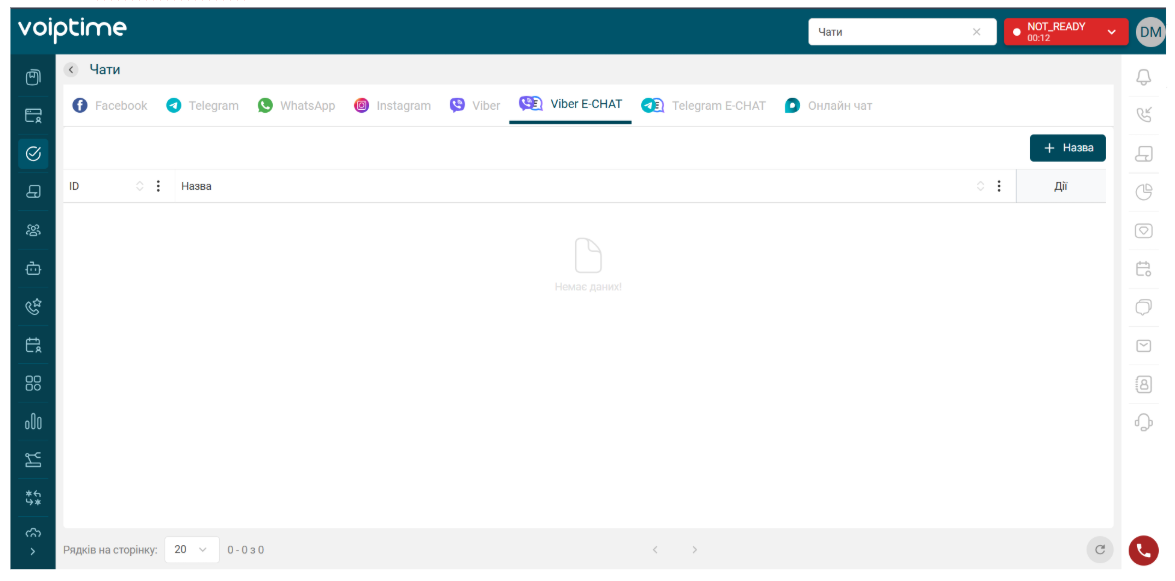
2) Click "Add" to open the integration creation menu.
The menu is divided into two sections:
-
"Settings";
-
"E-chat Settings".
Settings Section
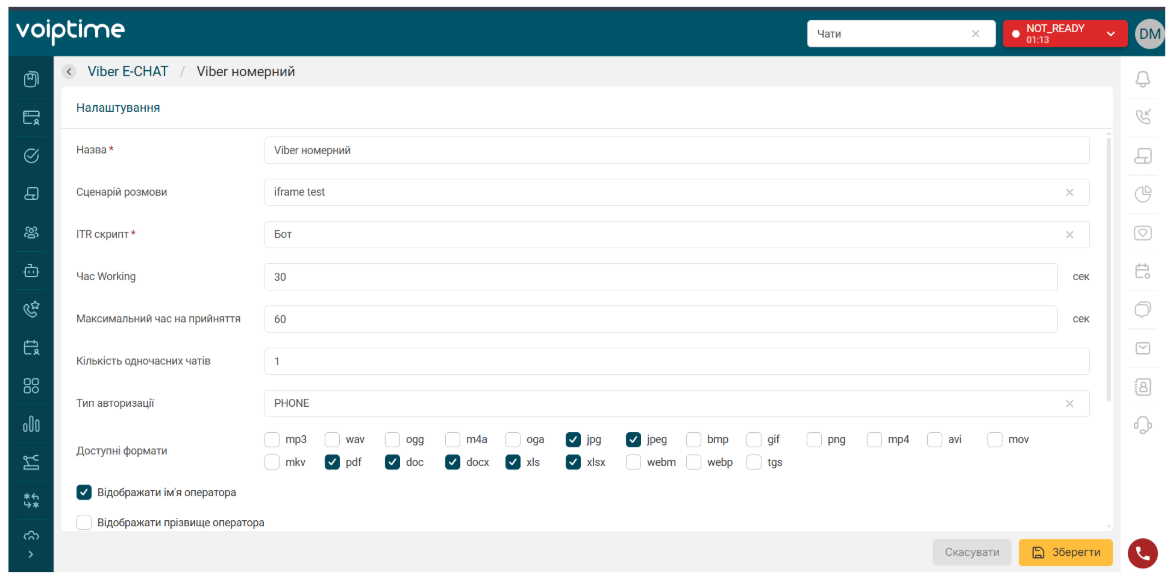
Complete the following fields:
-
Name - the name of the task.
-
Conversation Script - the conversation script displayed to the operator during the chat with the customer.
-
ITR Script - a configured automated assistant that interacts with the customer before an operator joins the conversation.
-
Working Time - the time provided to the operator to process information after the conversation with the customer has ended. During this period, the operator remains in the Working status.
-
Operator Response Timeout - the maximum amount of time within which the operator must respond to the customer.
-
Maximum Acceptance Time - the amount of time within which the operator must accept the chat.
-
Number of Concurrent Chats - the number of active chats for this task that an operator can handle simultaneously.
-
Authorization Type - the customer identification method. Available options are Phone and Email. For unauthorized chats, click the cross icon at the end of the row.
-
Chat Rating - a rating scale from 0 to 10 that the customer can use after the conversation has ended.
-
Available Formats - the file formats supported in the chat.
-
Display Operator First Name - displays the operator's first name to the customer.
-
Display Operator Last Name - displays the operator's last name to the customer.
E-chat Settings Section
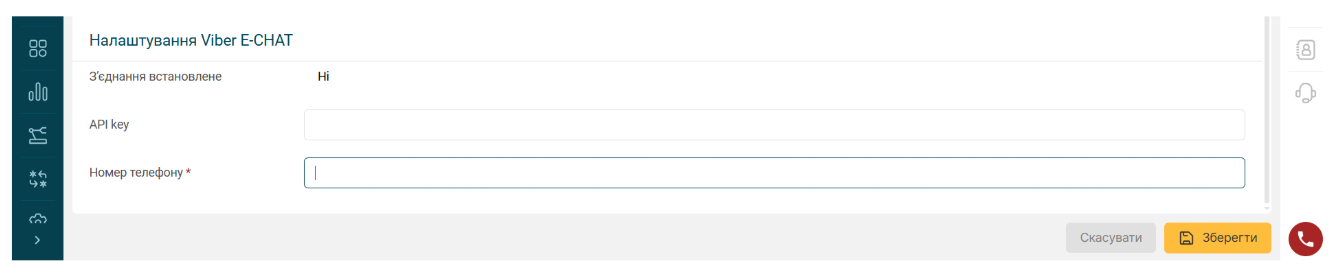
Complete the following fields:
-
Connection Established - the integration status. If all fields are completed correctly, the value "Yes" will be displayed.
-
API key - the API key required to create the integration. You can find it in your E-Chat account under "Integrations", in the "API key" column next to the required phone number.
-
Phone Number - the Viber phone number connected to E-Chat.
After creating the task, assign it to the operator group that will initiate conversations with customers and process incoming chats from personal Viber and Telegram accounts.
Important! We recommend creating only one task for each phone number.
Deleting Viber E-chat and Telegram E-chat Tasks
Before deleting a task, you must first deactivate its webhook.
To do this:
-
Go to:
"Tasks" -> "Chats" -> "Viber E-chat"
For Telegram, open the "Telegram E-chat" section.
-
Locate the required task and select "Edit".
-
On the settings page, scroll to the bottom and click "Deactivate Webhook".
-
Save the task.
-
Return to the previous page containing the list of chat tasks.
After the webhook has been deactivated, you can delete the task.
Initiating a Chat as an Operator
An operator can initiate a conversation and send the first message to a customer in two ways:
-
from the customer profile;
-
from the Chats tab.
Initiating a Chat from the Customer Profile
An operator can send an outgoing message directly from the customer profile, for example during a phone call.
To do this:
1) In the customer profile, go to:
"Contacts" -> "Phone Numbers"
Locate the required number and select "Send Message" from the "Actions" menu.
2) Complete the following fields in the window that opens:
-
Channel - select one of the available channels: Telegram E-chat or Viber E-chat.
-
Account - select one of the E-Chat tasks you have created.
-
Message - enter the text of the message you want to send.
-
Upload Files - attach files to the message if necessary.
3) Click "Send".
The message will be sent to the customer. The operator's status will not change.
This option is recommended for outgoing messages when no response from the customer is expected.
If the customer replies to the operator's message, the response will be received as an incoming chat by any available operator from the group assigned to the corresponding Viber E-chat or Telegram E-chat task.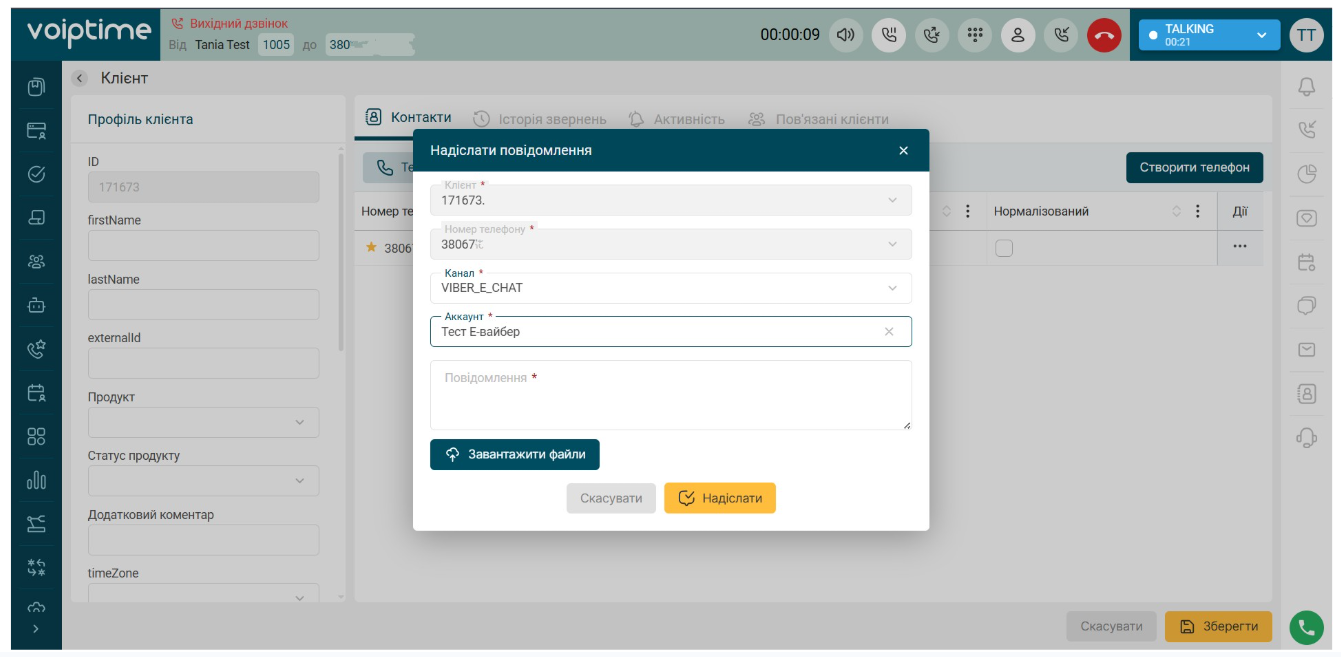
Initiating a Chat from the Chats Tab in the Operator Interface
To initiate an outgoing Viber or Telegram chat, the operator must select "Chats" on the right-side panel.
In the tab that opens, click "New Chat".
Complete the following fields in the message window:
-
Customer - search for an existing customer by phone number or create a new customer.
-
Phone Number - automatically populated for the selected customer. The number can also be entered manually.
-
Channel - select one of the available channels: Telegram E-chat or Viber E-chat.
-
Account - select one of the E-Chat tasks you have created.
-
Message - enter the text of the message you want to send.
-
Upload Files - attach files to the message if necessary.
To create a new customer, enter the phone number in the search field and click "Create New Customer".
The entered phone number will automatically be added to the corresponding field.
After completing the fields, click "Send".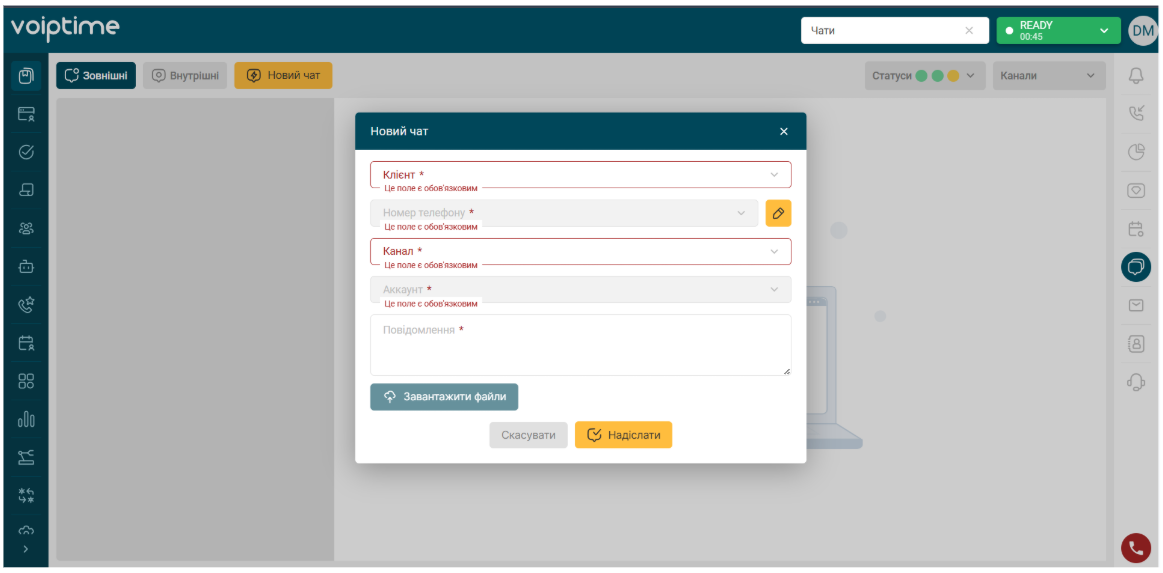
When this method is used, the operator will switch to the In process status after sending the message and can continue the conversation with the customer.
