1) In the CRM, go to "Administration" -> "Messengers".
Alternatively, open the "My Office" section and click the "Messengers" icon in the top panel.
Section URL:
https://crm.poehalisnami.ua/ofs381/administration/messengers
2) Click "Add Channel".
Select the channel you want to connect and complete the following fields:
-
E-chat API Key - paste the copied API key.
-
Phone number - enter the phone number of the account you want to connect.
-
Account name - enter any name. It will only be displayed in the CRM and can be used to identify the account.
3) Click "Save".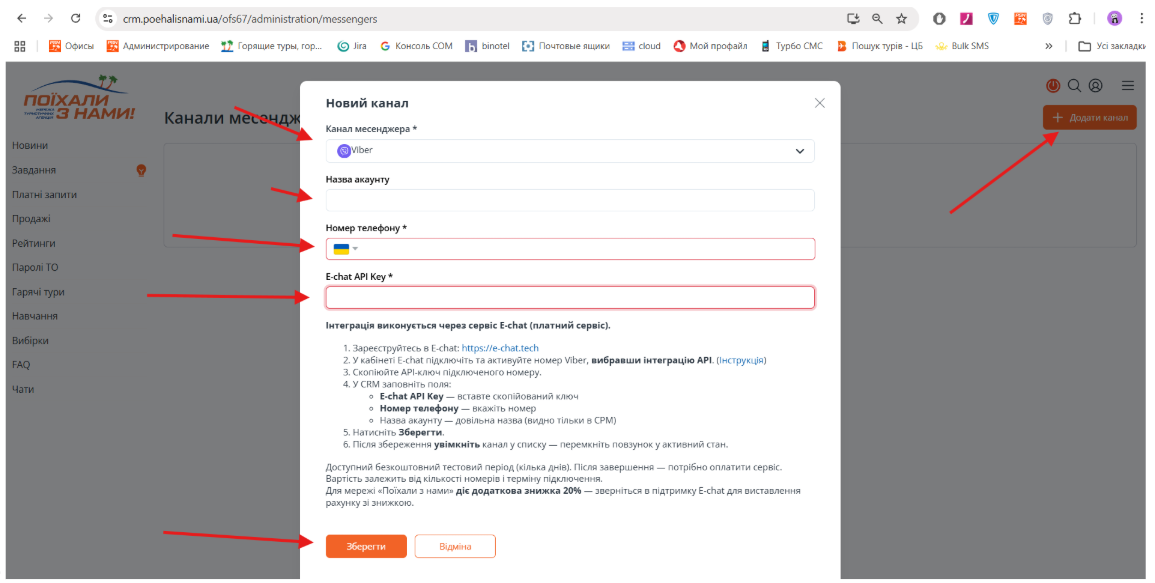
4) After saving the settings, enable the channel in the list by switching the corresponding toggle to the active position.
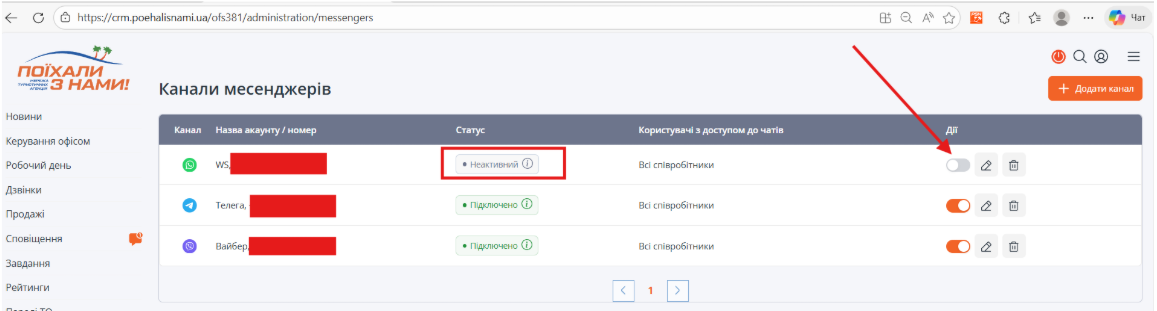
Important! The channel will not be activated until the toggle is enabled.
Make sure that the toggle remains active. While the channel is inactive, no messages will be received in the CRM.
Messages received before the channel was activated will not be imported into the CRM.
