Configuring Social Media in Odoo for E-Chat Integration
Step 1. Signing in to Odoo
-
Sign in to Odoo 18 using an Administrator account.
-
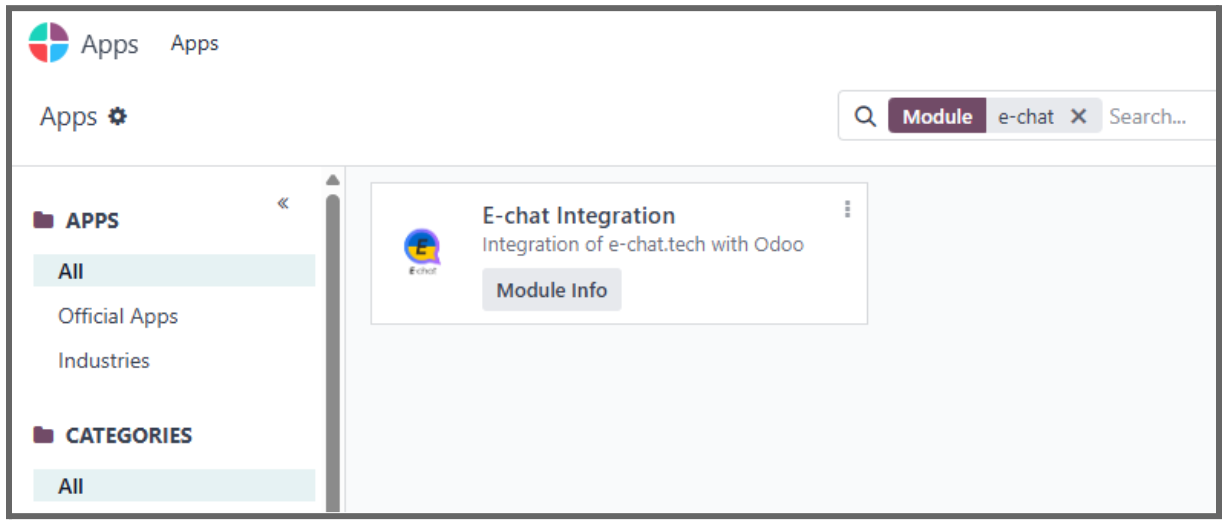
Make sure that the E-chat Integration module is installed in Apps.
-
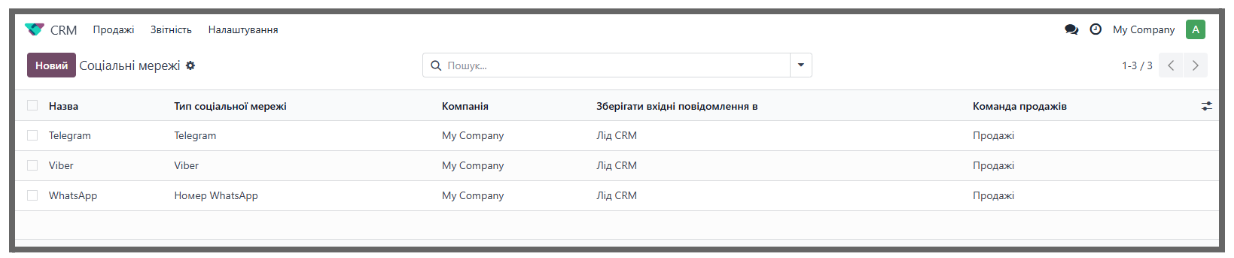
Go to CRM -> Configuration -> Social Media.
Step 2. Creating a New Connection for Each Messenger
Create a separate connection for Viber, Telegram, and WhatsApp.
1) Click New.
2) Complete the form fields:
-
Name: enter the name of the messenger (Viber, Telegram, or WhatsApp).
-
Social Media Type: select the corresponding messenger.
-
Company: specify the name of your company.
-
Store incoming messages in: select CRM Lead or Discuss Channel.
-
Sales Team: select the corresponding team.
-
Echat access token: paste the API key created for the connected phone number in your E-Chat account (13 characters, numbers and Latin letters).
-
Connect number: enter the phone number in the format 380*********.
3) Click Save manually.
4) Repeat these steps for all messengers (Viber, Telegram, WhatsApp).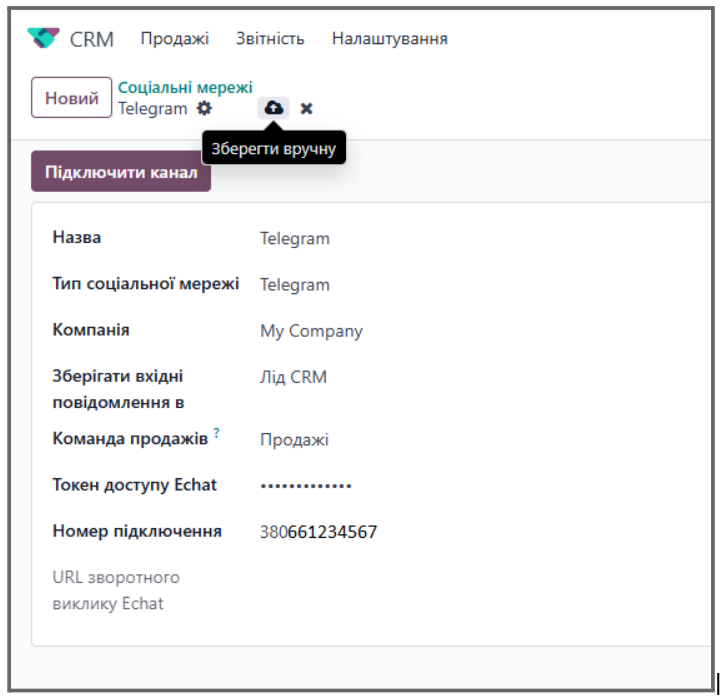
Please note. If the number is entered incorrectly, the program will display an error.
Step 3. Connecting the Channel and Configuring Webhooks
-
Open the connection created for the specific messenger.
-
Click Connect Channel.
-
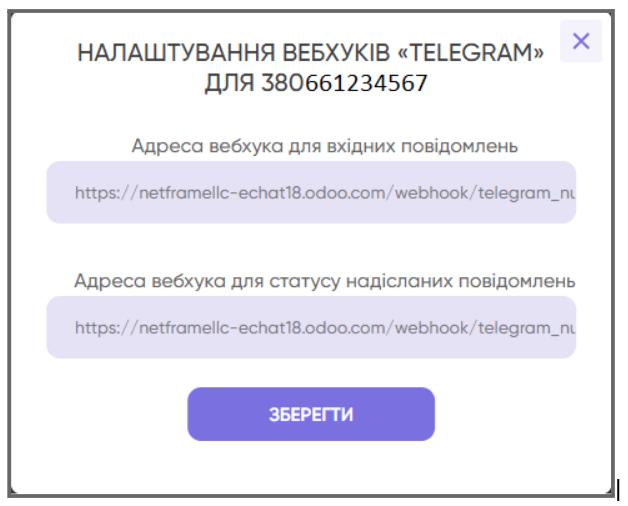
Copy the Echat callback URL, which will be created automatically in the Echat callback URL field.
-
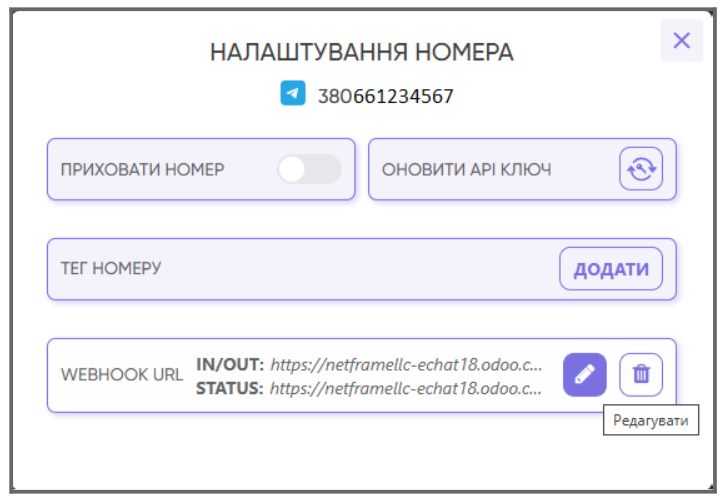
Go to your E-Chat account -> Integrations -> Number Settings -> Webhook Settings (Webhook URL).
-
Click Edit and paste the copied link into both fields.
-
After saving, a pop-up message will appear: "Webhook data has been successfully updated."
Step 4. Testing the Integration
-
Send a test message from the connected messenger (Viber, Telegram, or WhatsApp).
-
Check whether the message is received in Odoo -> Discuss or in the CRM Leads card.
Module Features
"E-Chat Integration" in Odoo 18
Customer Messages in Odoo: CRM or Discuss
1. Message Routing
The delivery channel is determined in CRM -> Configuration -> Social Media -> Store incoming messages in:
-
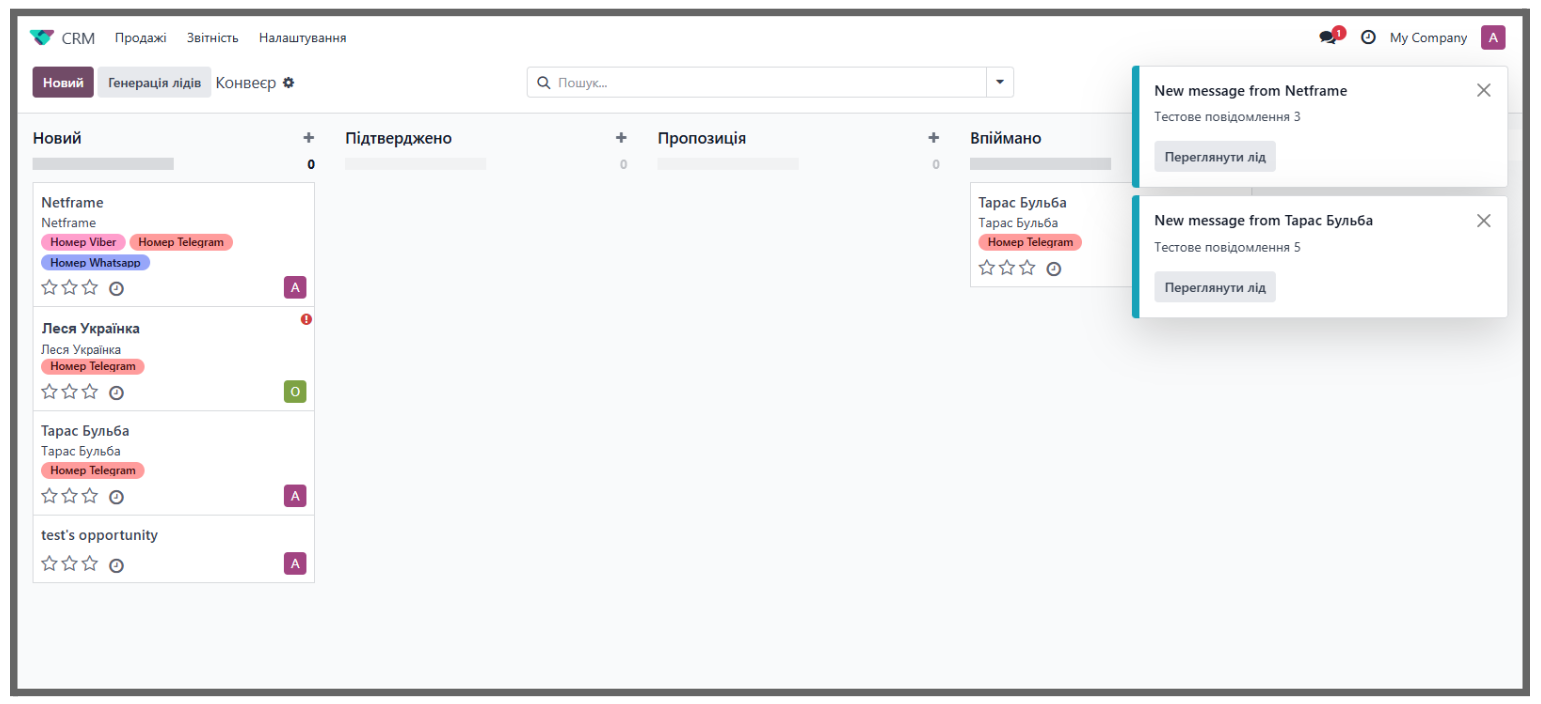
CRM Lead - messages are sent to the CRM.
-
Discuss Channel - messages are displayed in Odoo -> Discuss.
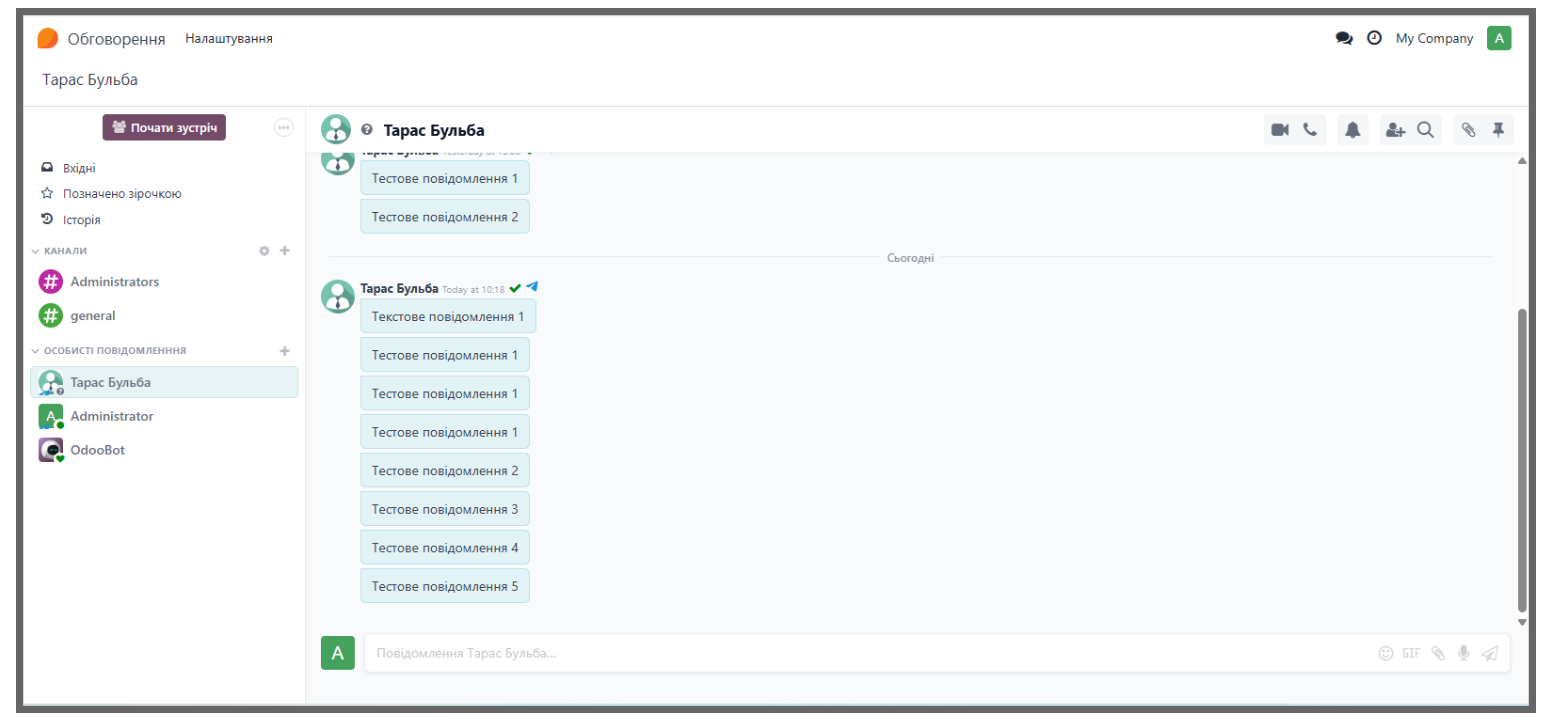
The current contact name and photo are displayed for all channels, making it easier to identify the person you are communicating with.
2. Messages in CRM (option: "CRM Lead")
New customer -> automatic lead creation
-
The customer sends the first message (Viber/Telegram/WhatsApp).
-
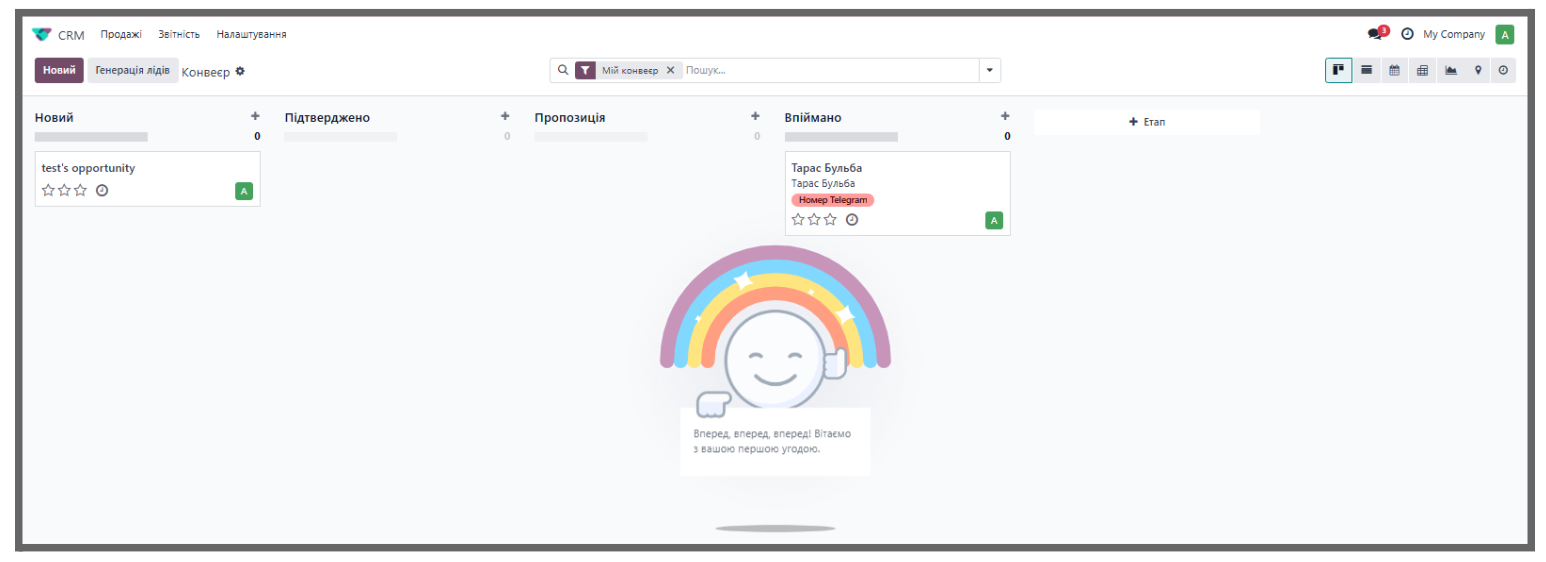
The system creates a new lead in CRM -> My Pipeline.
-
At the same time, a pop-up window appears with the contact information and the text of the first message.
-
The lead card provides messaging functions: replying to the customer, changing the messenger, sending attachments, and reassigning the salesperson.
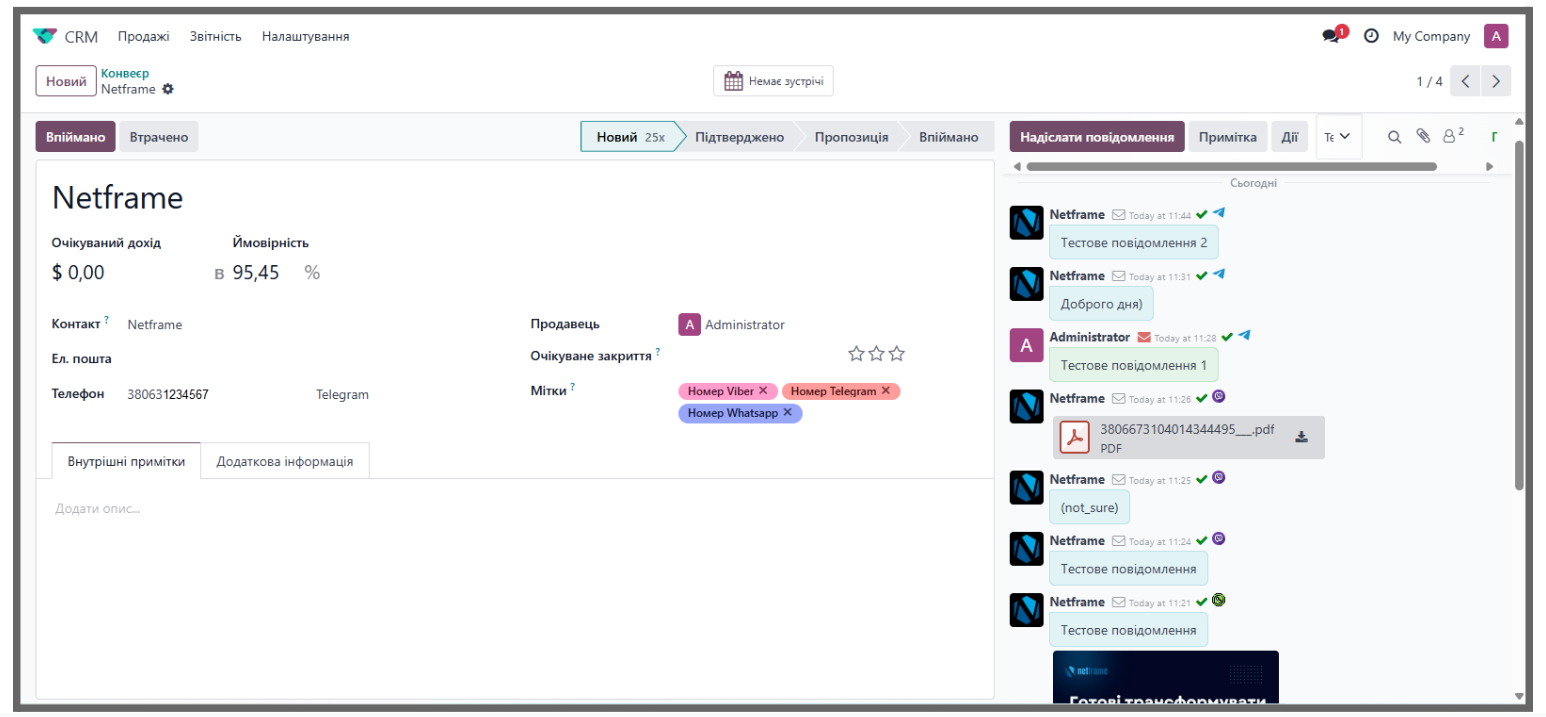
How it works:
-
All subsequent messages from the same contact are linked to the current lead until the status is changed to "Caught".
-
If the status is changed to "Caught", a new message from the contact creates a new lead.
-
When a new message is received in an existing lead, a red indicator with an exclamation mark appears.
-
Each newly created lead automatically receives display priority.
-
The "Tags" field in the lead card displays a list of the messengers used for communication in chronological order.
3. Messages in Discuss (option: "Discuss Channel")
All requests -> to Discuss
-
Discuss Channel is selected in the social media settings for the chosen messenger.
-
The customer sends a message in the corresponding messenger.
-
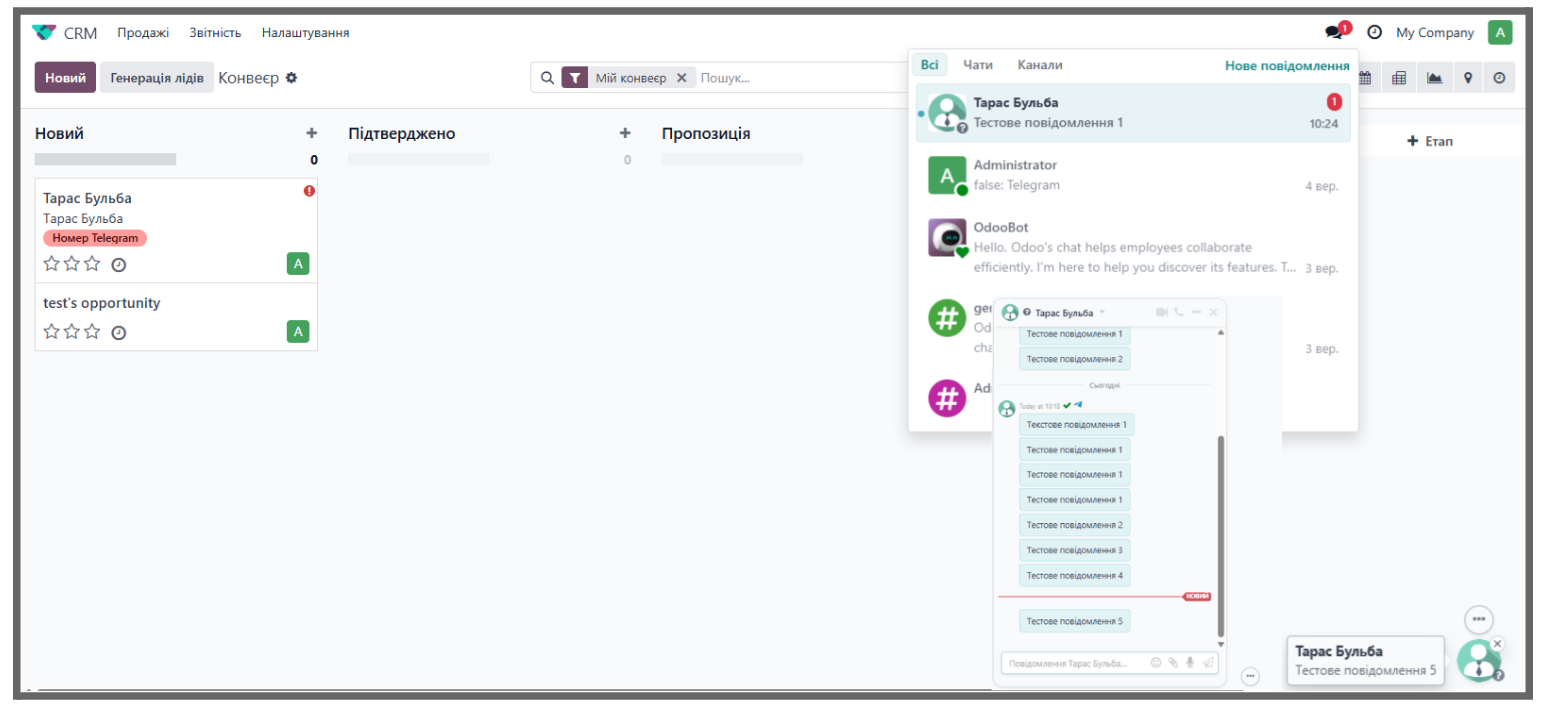
The message appears in Odoo -> Discuss.
Additionally:
-
New messages are visible in the chatter on the top panel.
-
A contact icon appears in the lower-right corner and opens a discussion pop-up window.
4. Message Distribution
1) Automatic assignment -> a new message is automatically assigned to a manager.
2) Distribution methods:
-
Last agent - the message is assigned again to the manager who communicated with the customer previously.
-
Even distribution - the system assigns the next agent based on workload.
3) The manager can always manually change the responsible person in the lead card, in the Salesperson field.
The E-Chat integration in Odoo makes customer communication simple, centralized, and efficient.
For module implementation and support, contact the Netframe team.
